
Here you’ll learn how to stop Google from indexing junk content in WordPress with noindex SEO, a minimalist tool for doing SEO without complications.
Junk content: the “dark side” of WordPress
WordPress is a fantastic platform, but it has a small factory defect: it’s a URL-generating machine. For every post you write, WordPress automatically creates tag pages, category pages, date archives and author pages.
If you’re not careful, Google will end up crawling hundreds of pages with duplicate or low-value content (what the trendy folks call thin content). This doesn’t just confuse the search engine, it also wastes your crawl budget, that is, the time Google decides to spend on your site. This is where noindex SEO comes in.
The plugin’s author, Javier Casares, isn’t a fan of the big do-everything plugins we’re used to, and that pretty much everyone looks for. In general, he likes plugins that do little but do it well.
That’s why he designed this plugin with a sysadmin mindset, using clean code, zero impact on load speed and maximum effectiveness. No fireworks.
Who is noindex SEO for?
This plugin is the perfect choice if you’re in one of these two groups:
- You’re a minimalist, you want your site to fly and you don’t want to install a “monster” like Yoast or Rank Math just to add a couple of
noindextags. - You’re practical and want to fix WordPress indexing problems once and for all, without needing a master’s degree in SEO.
Of course, if you need a plugin to tell you whether you’ve used your keyword enough times in the text (the famous traffic light), this isn’t your plugin.
What does noindex SEO do?
First of all, note that noindex SEO can be used alongside other SEO plugins. In fact, its very first settings tell you that you can turn off the compatibility warnings for other SEO plugins. However, it’s important to do this knowing what you’re doing.
But let’s not get ahead of ourselves. You configure the plugin by going to Settings > noindex SEO. There’s not much more to it. There you’ll find a very long settings screen where you’ll do practically everything.
General settings
In the first section you can turn off the compatibility warnings for other SEO plugins that we mentioned earlier.
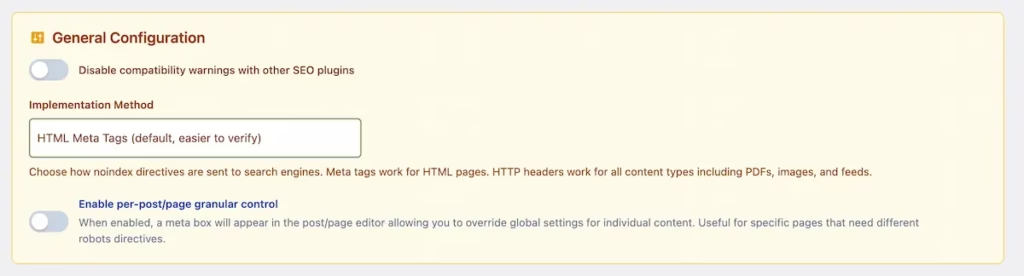
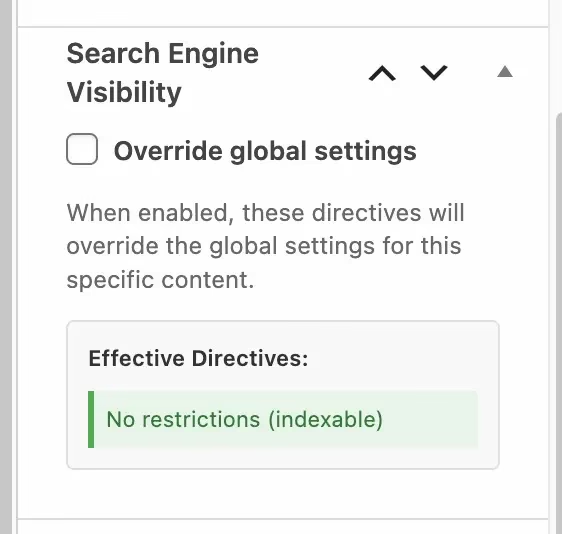
Here you can also enable granular control, which lets you set indexing page by page or post by post through a metabox that appears in the WordPress editor for each of them.
But there’s a very powerful option we may not be sure how to use: the implementation method, which Javier Casares has simplified a lot. It defines how the SEO instruction (such as noindex) is sent from your server to Google.
Basically it offers three methods:
- HTML Meta Tags, which is the default. Here the plugin inserts a line of code in the
<head>of your web page. For example:<meta name="robots" content="noindex">.
The good thing about this method is that it’s very easy to check: by viewing the source code you can search for the tag and confirm it’s there. The problem is that it only works on HTML pages, so if you want to hide a PDF or an image from Google, it won’t help, since those files don’t have an “HTML head”. - HTTP Headers. This is a more robust method, because instead of writing the instruction inside the page, it’s sent in the “server response”, before the page even loads. It’s sent as a header called
X-Robots-Tag.
The advantage is that it’s much more powerful, because it can be applied to all kinds of files (images, PDFs, RSS feeds, etc.). It’s ideal for sites that include these types of files. - Both: the most compatible option, since it uses both methods at once, sending the instruction in the server response and also writing it in the page’s HTML.
This way you make sure that any search engine, however old or limited, receives the instruction correctly.
For most of us, HTML Meta Tags will be enough, but if you want to fine-tune things because you use files in formats other than HTML, it’s best to choose Both, which gives you maximum coverage without affecting the site’s performance.
Options common to all sections
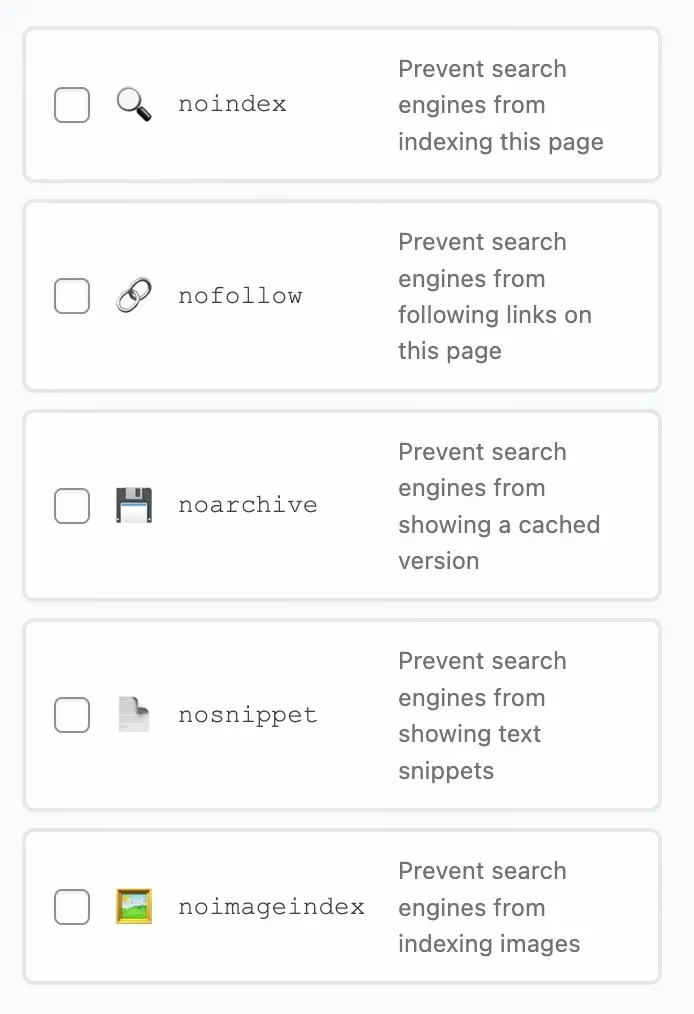
In every section you’ll find the following options, which I explain below:
noindex, which tells search engines not to index that page.nofollow, which tells them not to follow the links they find on that page.noarchive, which tells them not to show a cached version.nosnippet, which tells them not to show text snippets. To put it more clearly, we’re saying “You can index this page and show it in the results, but you’re not allowed to show a text snippet or preview under the title”. Only the title and URL will be shown, and the description will be empty.noimageindex, which tells search engines not to index the images on that page.
Recommended settings
I’ll suggest a recommended configuration that works for most projects based on a corporate website with a blog. These settings follow Google’s recommendations for best practices and for avoiding duplicate or low-quality content (thin content).
As mentioned earlier, set the implementation method to Both (maximum compatibility), for the reasons explained above.
Archive settings (Archives)
Google prefers to crawl original, unique content, and archives are usually copies of what’s already on the home page or in the categories. So you should configure these sections as follows:
- Author Archives: If your blog is personal (only you write), check
noindex. You don’t want Google indexing a page that’s identical to your home page. It’s different if you run a magazine or newspaper where authors can attract traffic. In that case, don’t. - Date Archives: Check
noindexwithout hesitation. Nobody searches for content by “October 2023”, and these pages only fragment your authority. - Search Results:
noindexis a must. Google explicitly recommends not indexing internal search results to avoid infinite loops and content of zero value to the search engine. Imagine every random thing a user types into your site’s search box showing up indexed in Google’s results.
Taxonomies
This is where you need to think about which strategy to choose depending on how you use WordPress:
- Categories: Leave them as
index. If they’re well organized, they’re excellent for helping Google understand your site’s structure. If you’re not sure, you may want to set them tonoindex. - Tags: If you use hundreds of tags without control, check
noindex. If you only use a few that group very relevant content, you could leave them asindex, but I wouldn’t recommend it under any circumstances.
Special cases
There are several special cases that we basically don’t want indexed:
- 404 page: Make sure it has
noindex. You don’t want an error page showing up in Google’s results. - Attachments: Ideally set to
noindexor redirected to the original file. This stops Google from indexing an empty page that only contains an image. In any case, this was fixed in WordPress 6.4, so the option may not even be available for you to edit.
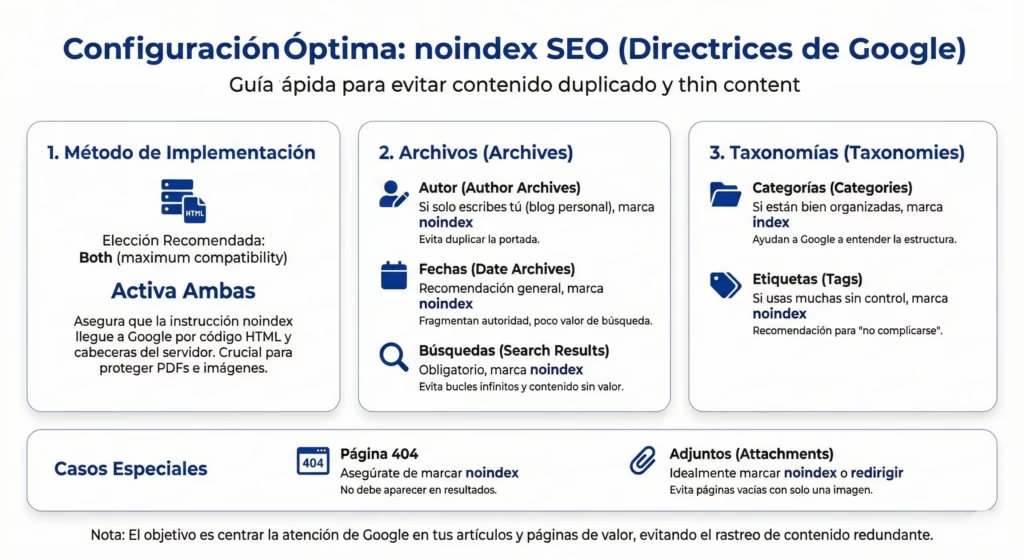
To make things easier, here’s a “cheat sheet” to keep handy when configuring the plugin:
The best part: its performance
The best thing about noindex SEO is what it doesn’t do: it doesn’t weigh down the site you install it on. It barely weighs anything and does everything quite discreetly.
It also doesn’t add ads to your dashboard, doesn’t slow down the WordPress admin and doesn’t clutter the database with unnecessary tables, so for anyone looking for lightweight plugins it’s a unicorn.
So my conclusion is that, if you don’t want to load your site with complex SEO plugins, you should at least install noindex SEO.
You can find it for free in the official WordPress directory.



Leave a Reply